
How to File a GMB Reinstatement Request the Right Way
Suspended Google Business Profile?
Learn how to file a GMB reinstatement request correctly to recover your suspended account and restore your business visibility.
Introduction
Suspension of a Google Business Profile (previously Google My Business) might seem to blackout your business in a matter of no time. You show up on Google Maps and local search one day, and then all of a sudden, you disappear from the view of the customer. Suddenly, you can no longer get calls because you have lost visibility, customers are not able to find you, and trust is mishandled.
A Google Business Profile suspension often happens because of guideline issues, but the good news is that you can recover by learning how to file a GMB reinstatement request the right way. When this is done right, it helps get your business back online in the shortest time possible without any unnecessary delays.
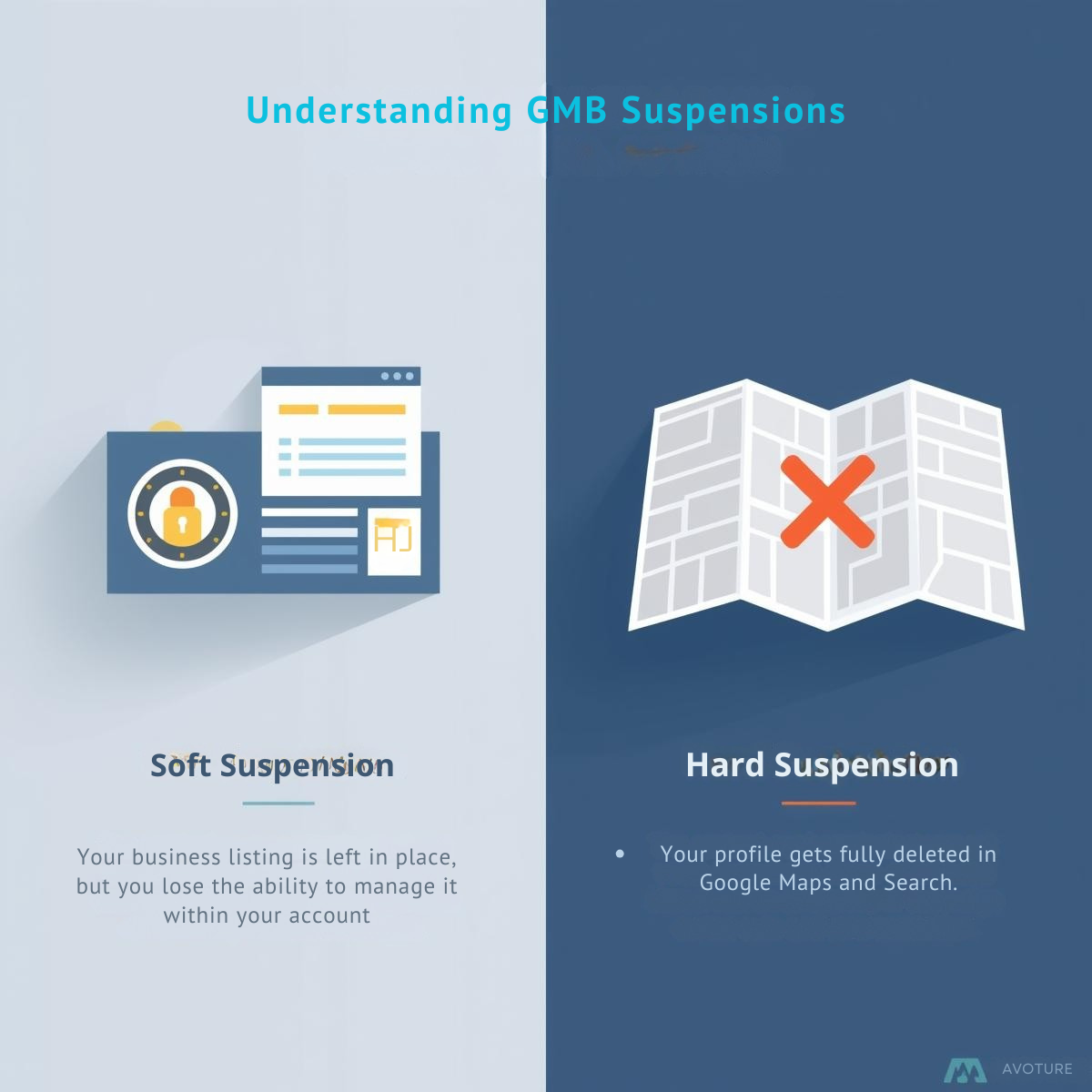
Understanding GMB Suspensions
Before jumping into the GMB reinstatement process, it's important to understand why suspensions occur.
Soft Suspension
Your business listing is left in place, but you lose the ability to manage it within your account.
Hard Suspension
Your profile gets fully deleted in Google Maps and Search.
Suspensions usually stem from GMB policy violations, such as:
- Being a tenant of a virtual office or P.O. Box.
- Putting extraneous categories or keywords in your name.
- Making false reviews or information.
- Acting in limited businesses without any evidence of legitimacy.
Recognizing the type of suspension and its cause helps you file a stronger Google Business Profile reinstatement request and recover a suspended GMB account with fewer delays. Before filing your appeal, run a free GMB audit to identify exactly what needs to be fixed.
Preparing Before Filing a Reinstatement Request
One of the greatest errors that businesses commit is trying to rush into a reinstatement request without any preparation. This is how you should start:
1Review Google's Guidelines
Review the recent Google Business Profile requirements to learn how your profile can comply with them. This step alone can help you avoid GMB suspension in the future.
2Gather Documentation
Proof of business legitimacy is regularly requested by Google. Retain records such as:
- Tax or business certificate
- Business address utility bill
- Pictures of your entrance/storefront with advertising
- Incorporation papers / legal incorporation
3Correct Your Information
Fix any inaccurate or misleading details on your profile before you submit a GMB reinstatement request. Otherwise, you will be rejected in your application to resolve the GMB suspension.
Step-by-Step Guide to Filing a Reinstatement Request
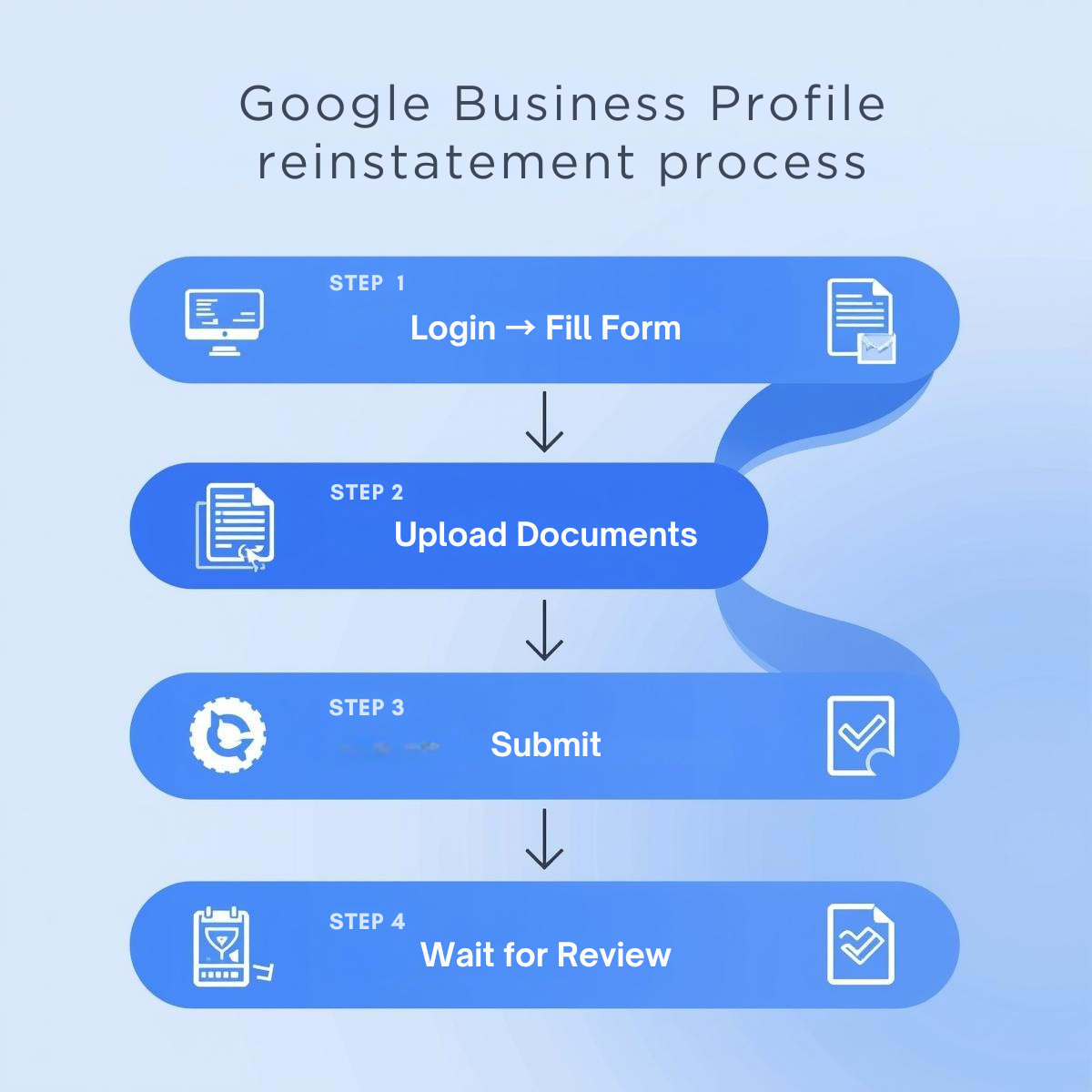
This is how to request a GMB reinstatement properly:
Log in to your Google Business Profile account
Log in to the account you want your suspended listing to be managed.
Access the GMB Reinstatement Form
Visit Google's official GMB reinstatement form for suspended profiles.
In order to receive correct benefits information, be precise about business details
Your business name, address, phone number, and website should be put in their real-life form.
Upload Supporting Documentation
Add business permits, photos of a storefront, or any other piece of evidence that is needed.
Report & Document
You request to save the emails that have a confirmation and serial numbers once submitted.
This process might seem straightforward, but accuracy is everything — one small inconsistency can delay your Google Business Profile reinstatement.
Mistakes to Avoid When Filing
The mistakes committed by businesses, even with good intentions, cost them the likelihood of recovery. Avoid at all costs the following:
Filing without correcting GMB policy violations.
Presenting unreal or incomplete papers.
Lodging a series of reinstatement requests prior to Google's response.
Filing accounts of differing information (e.g., different addresses on platforms).
These errors can lengthen the suspension — or even worsen the impossibility of reinstatement.
What Happens After You Submit the Request
Once you file a GMB reinstatement request, Google's review team steps in. Expect this:

Response Time
This normally varies between 3 days to 3 weeks. Patience is the key.
Possible Outcomes:
Approved
Stage-started, and your business returns to search.
Refused
Google can not get content. You may be required to provide extra documentation or correct some other issues.
More Information Request
Google can send you an email asking you to provide additional documents or details.
Do not panic in case the action is denied. Draft, proofread, correct, and re-file. To get additional help, you can also contact Google My Business support by using their help or community forums.
Best Practices to Avoid Future Suspensions
Reinstatement is just one-half of the trick; the real key is to remain compliant. Here are the best practices to avoid GMB suspension again:
NAP Consistent
Your Name, Address, and Phone Number should be the same everywhere.
Don't Keyword Stuff
Do not stuff keywords into your business name.
Stop Publishing Fake Content
No false reviews or deceptive reports.
Be Updated
Keep up with Google Business Profile policies as they are subject to revision.
Track Activity
Be alert to unauthorized changes or suspicious edits to your profile.
These tips will not only help your business bounce back but also maintain a balanced position on Google.
Conclusion
A Google Business Profile suspension can feel devastating, but with the right approach, recovery is possible. The key is to file a GMB reinstatement request accurately, provide legitimate documentation, and resolve any GMB policy violations before you hit submit.
Keep in mind that reinstatement is both a short-term as well as a long-term process of earning your profile back and maintaining credibility and compliance. If you approach GMB reinstatement the right way with patience, honesty, and proper preparation, you'll maximize your chances of success and protect your business from future suspensions.
Once reinstated, use our free GMB Audit Tool regularly to monitor your profile health and prevent future suspensions.